> For the complete documentation index, see [llms.txt](https://resmocom.gitbook.io/product/llms.txt). Markdown versions of documentation pages are available by appending `.md` to page URLs; this page is available as [Markdown](https://resmocom.gitbook.io/product/integrations/monosign-integration.md).
# MonoSign Integration
Guide for Resmo MonoSign integration
## Resmo + MonoSign Integration Fundamentals
Resmo seamlessly integrates with MonoSign to bring complete visibility, security, and compliance over your MonoSign assets, including users, user permissions, user roles, and more.
### What does Resmo offer to MonoSign users?
* Aggregate directory assets like users, user roles, and user permissions from your MonoSign account
* Query your MonoSign users, user roles, user permissions, and more using SQL or free text search.
* Set up automated security rules to continuously evaluate your asset security and compliance.
* Understand resource relationships in graph view.
* Track users, changes, and security and compliance issues in one place.
### How does the integration work?
Resmo uses API to do the initial polling and collect existing resources. Following the initial polling, it receives updates and changes in real-time through webhook and regular polling.
#### Available resources
{% embed url="" %}
## Integration walkthrough
### How to install
1. Select MonoSign on the Integrations page.
2. Click the Add Integration button at the bottom right corner of the opening modal.
3. Log in to your MonoSign account on a new tab.
4. Go to the **MonoSign management page**.
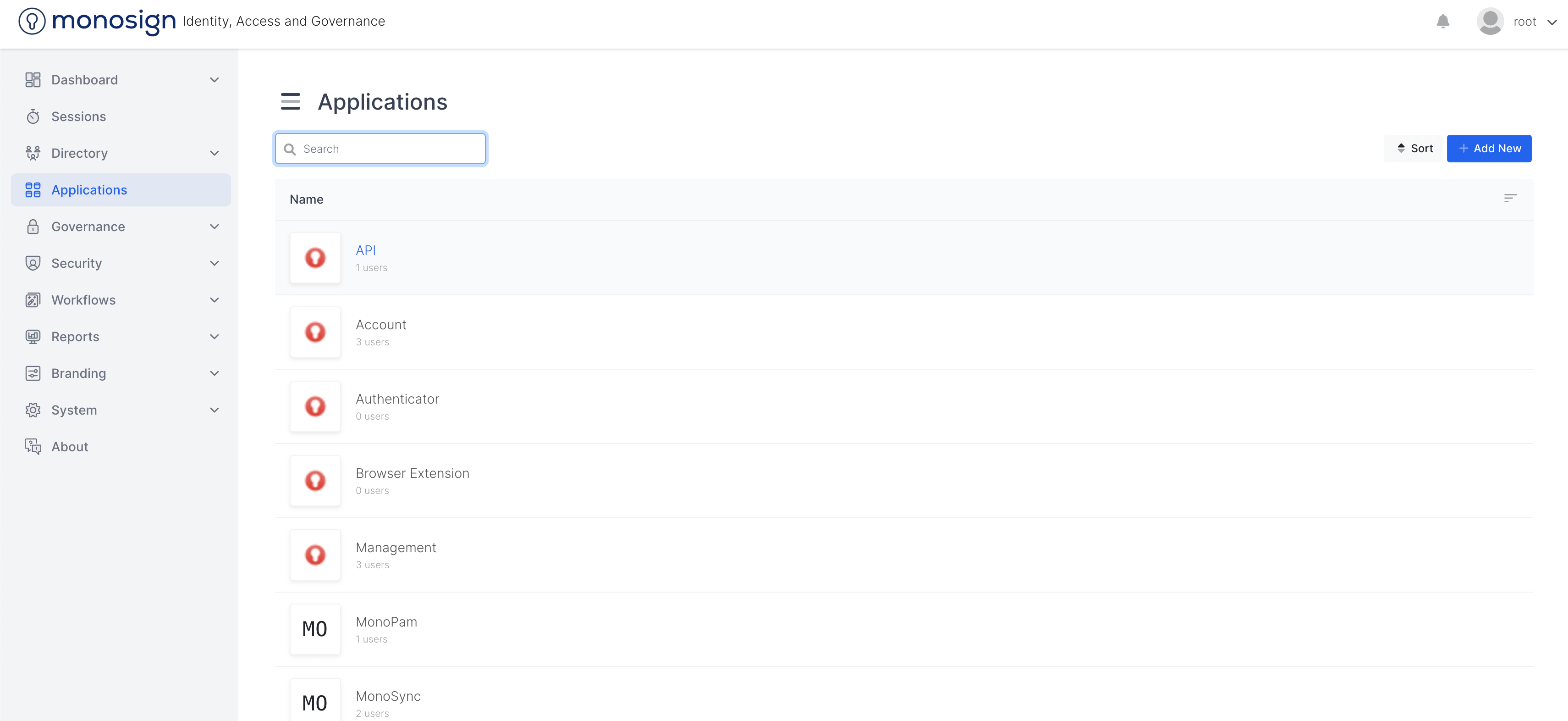
5. Navigate to the **Applications page**.
6. Click on **"API"**.
7. On the API page, click on **"Keys"**.
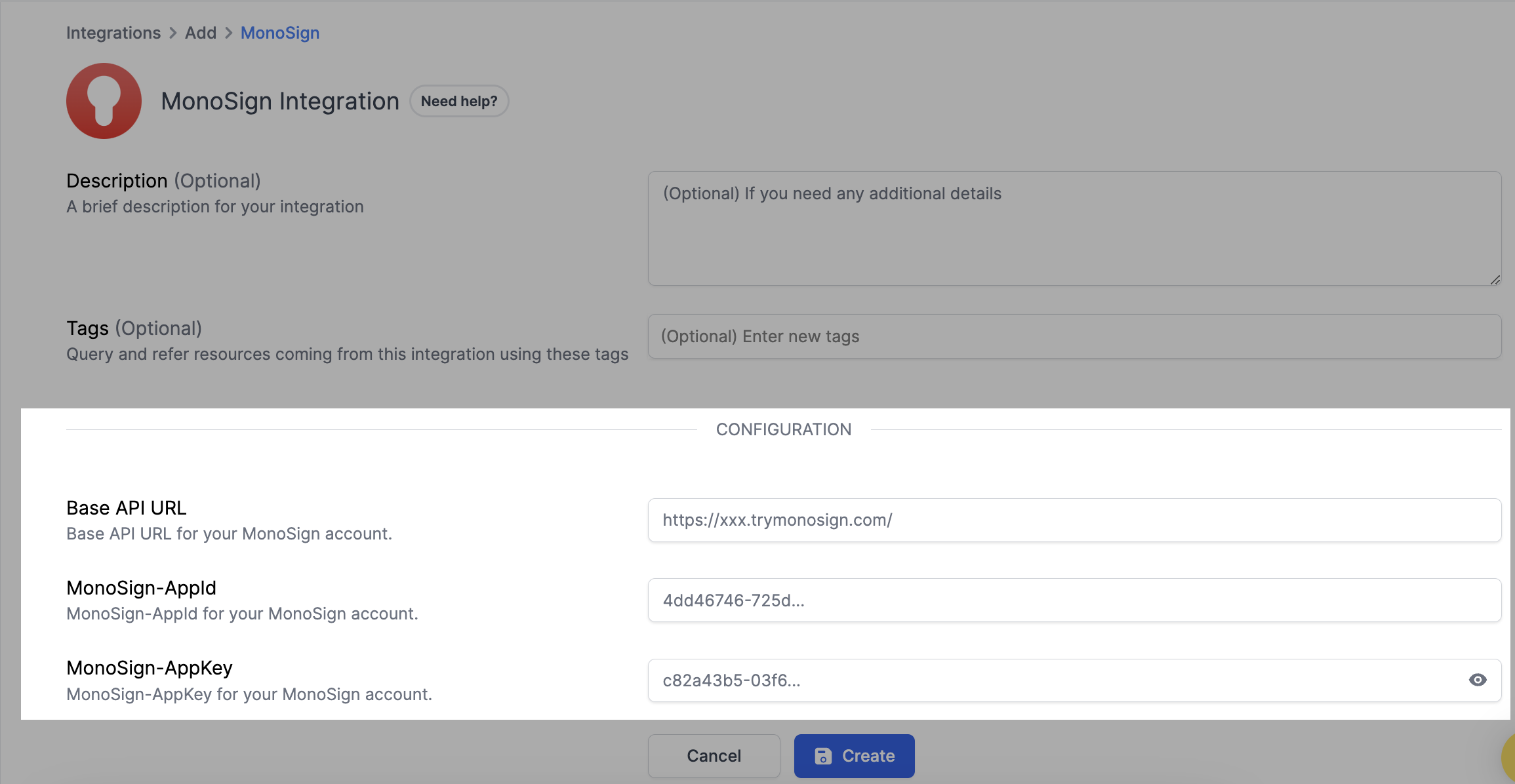
8. **Copy and paste the Base API URL** to the related field on the setup page.
9. Copy and paste the **MonoSign-AppId** to the related field on the setup page.
10. Copy and paste the **MonoSign-AppKey** to the related field on the setup page.
11. Click create.
12. All set! Now you can start running queries on your MonoSign resources.
### How to uninstall
1. Select MonoSign on your Integrations page.
2. Navigate to the Connected Integrations tab on the opening modal.
3. Click the MonoSign integration you want to uninstall.
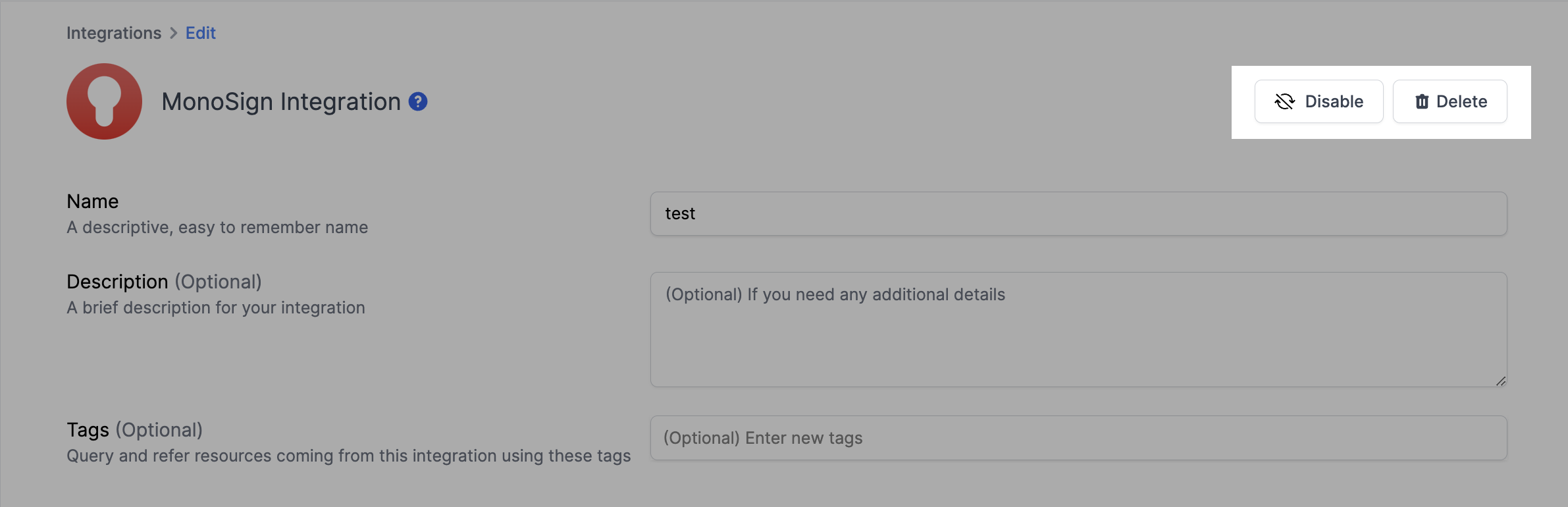
4. To temporarily pause Resmo from collecting your MonoSign resources, click the Disable button from the top right. For permanent deletion, click the Delete button instead. Disabling can be undone, while deletion cannot.